How to Use Share & Listen
AI-powered conversational surveys and broadcasts via SMS, WhatsApp, and RCS — right inside your monday.com board.
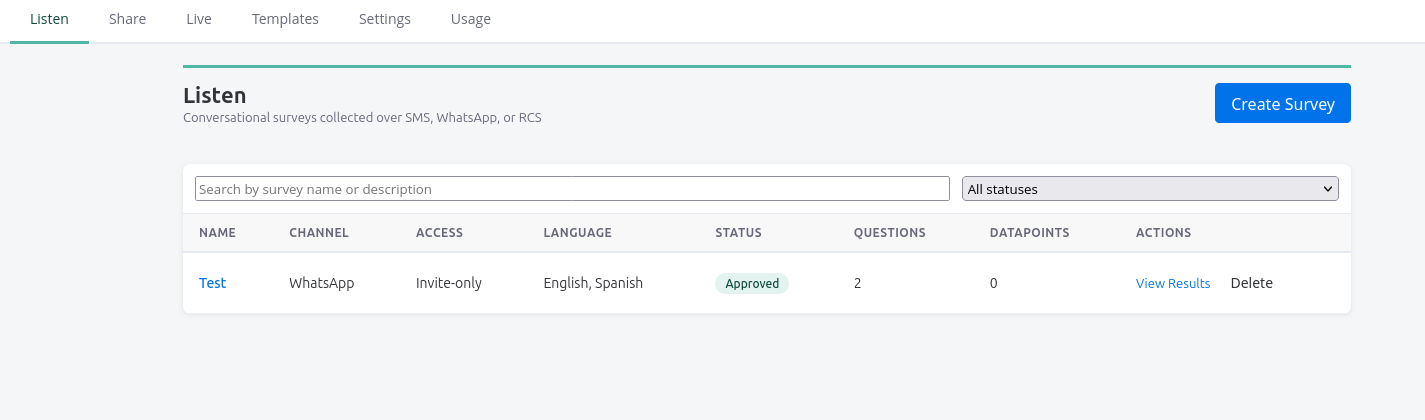
App workflow at a glance
Configure once, then build surveys, send broadcasts, and route live conversations.
Video Tutorials
Prefer to watch? These short screen recordings walk through the app's core workflows.
App Setup
How to Add a New Sender
How to Create Templates in EmpowerLink
How to Create a Listen Survey
How to Create a Share Batch Message
Prerequisites
What you need before installing the app.
- ✓ A monday.com account with appropriate permissions (member or admin).
- ✓ A workspace and at least one board where you want to use the app.
- ✓ A Twilio account with at least one phone number for SMS, WhatsApp, or RCS messaging.
- ✓ WhatsApp Business Profile (if using WhatsApp) with templates approved by Meta.
- ✓ A Google Gemini/Vertex AI API key (for AI-powered survey generation and responses).
- ✓ Optional: SendGrid API key for email delivery.
Installation
How to add Share & Listen to your monday.com board.
Open your monday.com board
Navigate to the board where you want to add the app. You can install it on any existing or new board.
Add the Board View
Click the + (Add View) button above your board, select Apps → Share & Listen from the marketplace.
Authorize the app
On first launch, the app will request permission to read and write boards and workspaces. Click Authorize to grant the required scopes.
Complete the welcome tour
The welcome page gives you a quick orientation. Click Continue to App to dive into the main interface.
Initial Setup
Configure the app before creating your first survey or broadcast.
Open the Settings tab
Click the Settings tab in the top navigation bar. This is your control panel for all configuration.
Add Twilio sender credentials
Enter your Twilio Account SID, a restricted API Key SID and Secret (create the key in the Twilio Console with the permissions listed on the Settings screen), and at least one Twilio phone number. These are encrypted and stored securely using monday.com SecureStorage.
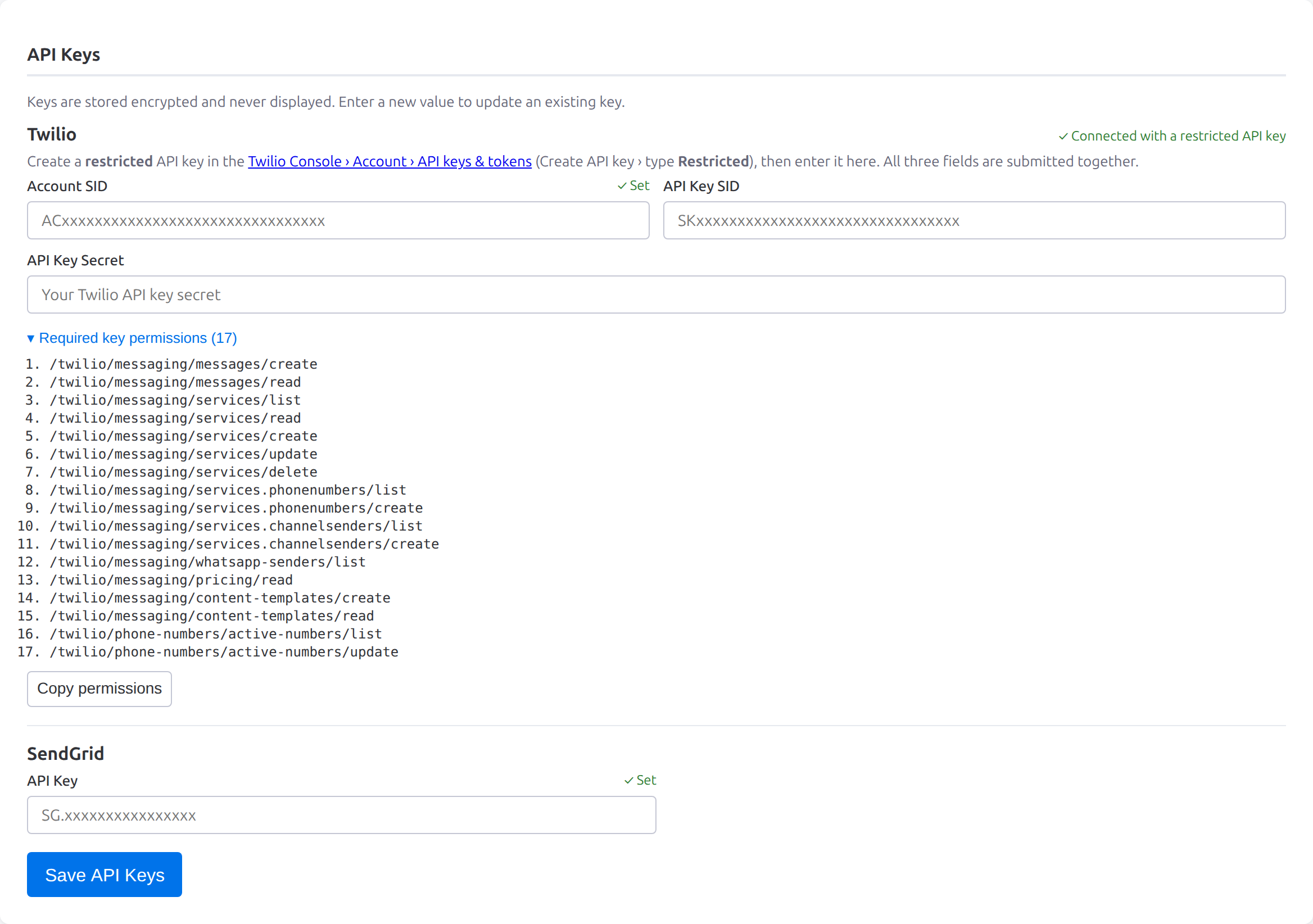
Use Webhook diagnostics on any sender to confirm Twilio's inbound webhooks match the app — status is shown as a server-computed match, and URLs are always redacted.
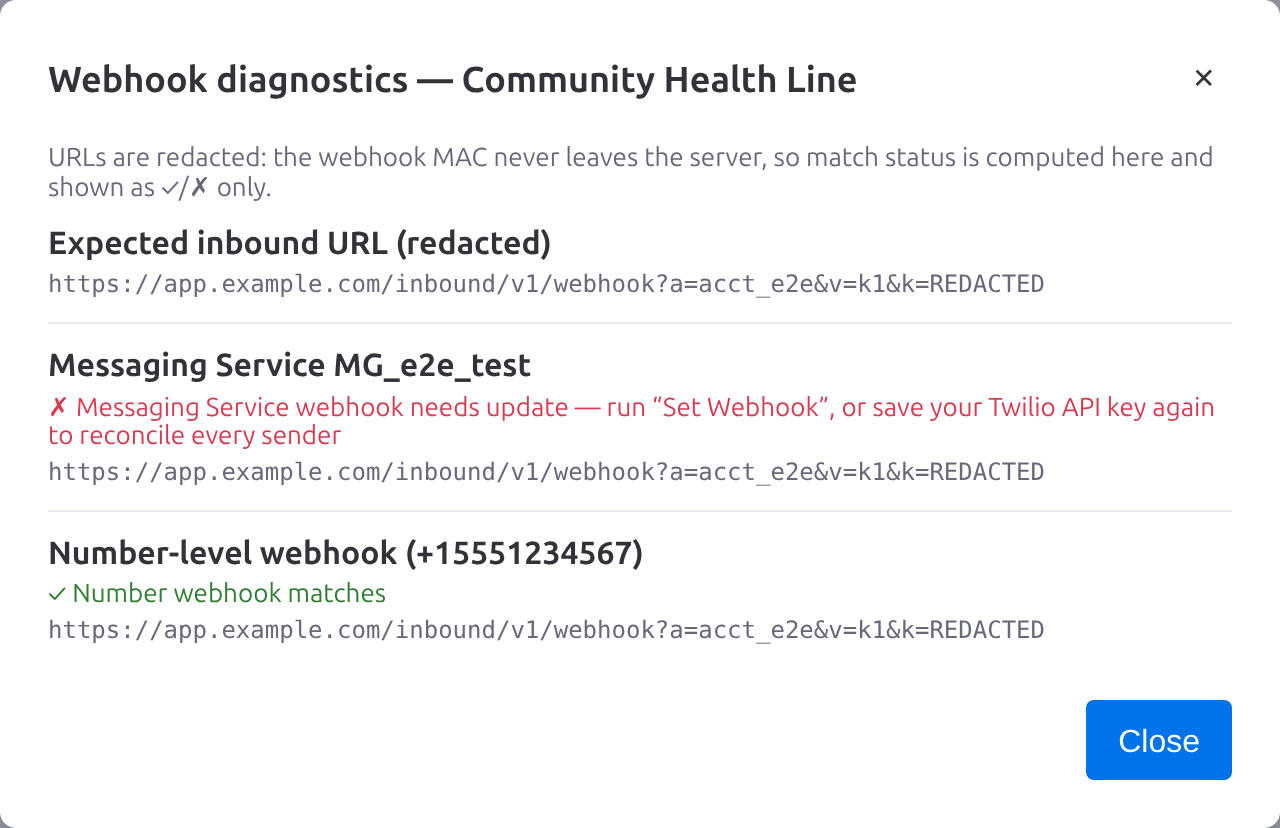
Configure Google AI API key
Provide your Gemini API key (or Vertex AI configuration) to enable AI-powered survey generation and translation.
Set up WhatsApp senders (optional)
If using WhatsApp, add your WhatsApp Business number and configure the sender profile. Meta-approved templates are required for outbound WhatsApp messages.
Select target boards
Choose which monday.com boards will store survey responses, contact profiles, and decision logs. You can use the same board for multiple purposes or separate them.
Feature Walkthrough
Share & Listen has five core features accessible from the tab bar.
Conversational Surveys
Create multilingual AI-powered surveys that adapt based on recipient responses. Supports SMS, WhatsApp, and RCS delivery. Track completion rates and export results.
Bulk Broadcasts
Send one-time or scheduled messages to recipient lists. Upload CSVs or import from monday.com boards, segment by demographics, and personalize messages with merge fields.
Inbound Conversation Routing
Route incoming SMS/WhatsApp messages to the right AI bot or survey based on channel. Monitor conversations and manage routing rules in real time.
Message Templates
Design and manage reusable message templates with multilingual support and variable placeholders. Templates power both Listen surveys and Share broadcasts.
Usage & Plans
Monitor your messaging quotas, token usage, and plan limits. The Usage tab shows real-time consumption across all features and plan tiers.
Your First Survey (Listen)
A step-by-step walkthrough for creating your first conversational survey.
Open the Listen tab
Click Listen in the tab bar. If this is your first time, you'll see an empty survey list.
Create a new survey
Click New Survey. Give your survey a name, select the target language(s), and choose whether to use AI generation or build questions manually.
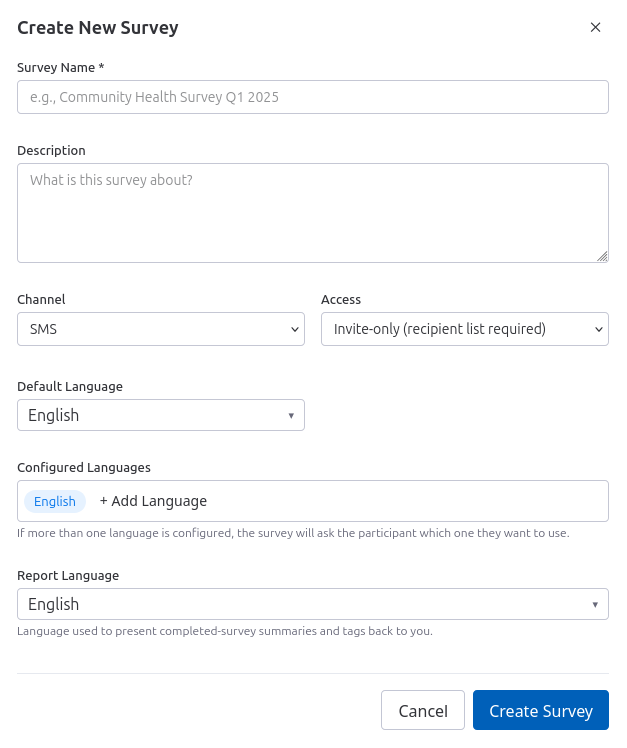
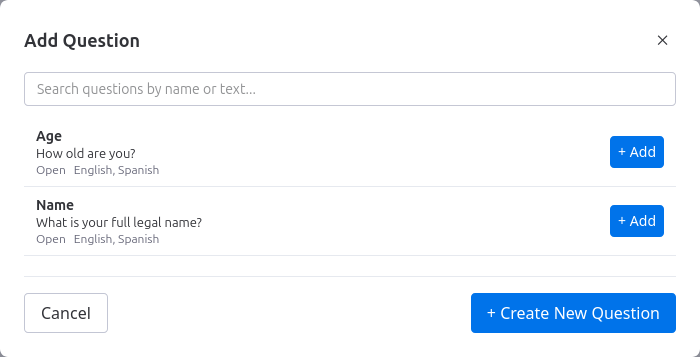
Design your questions
Add questions with answer types (text, multiple choice, numeric, etc.). The AI can suggest follow-up questions based on responses. Use the template system for reusable question sets.
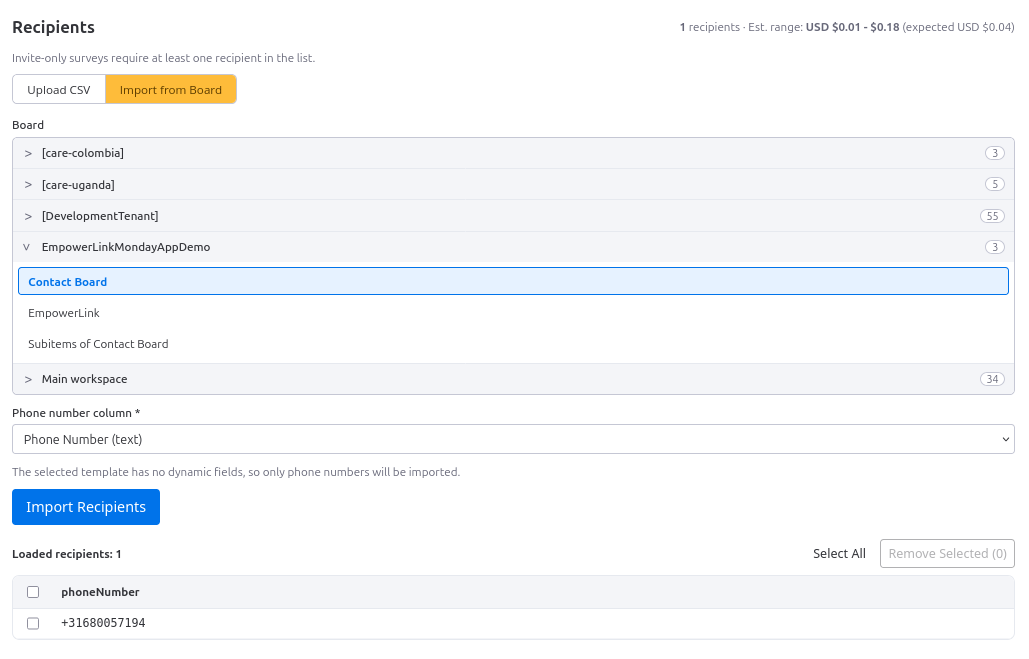
Import recipients
Recipients can be added in two ways: upload a CSV with columns for phone number, name, and demographic fields, or import directly from a monday.com board by selecting the board and column mappings. The app validates numbers and normalizes formats automatically.
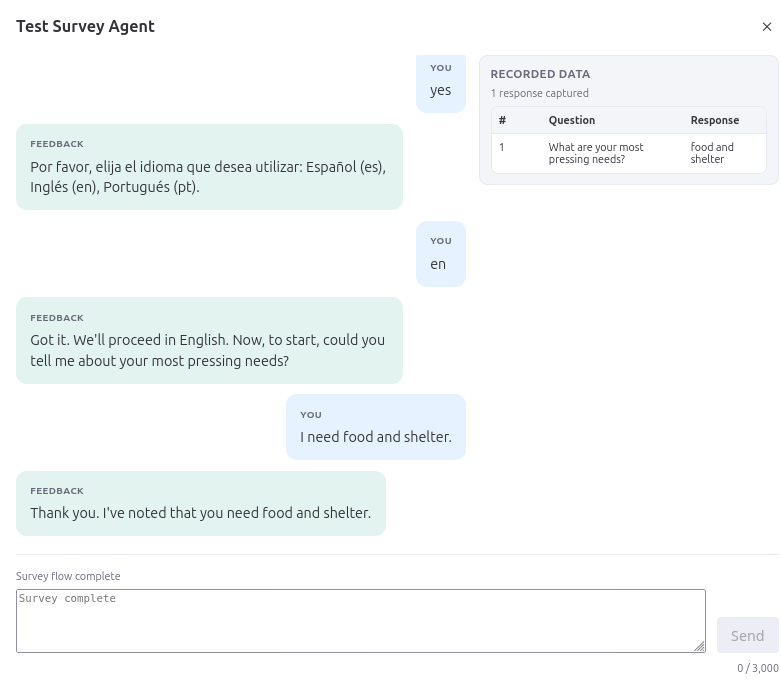
Test your survey
Before launching, use the Test panel to simulate a full conversation in your browser. The AI agent responds exactly as it would for a real participant — type your replies and verify that questions, language selection, consent, and routing work as expected. No real SMS or WhatsApp messages are sent.
Submit for approval & launch
Review your survey and click Submit. It enters a draft state for review. When ready, click Approve to start sending messages to your recipients.
Your First Broadcast (Share)
How to build a batch message, send it, and track delivery.
Create the batch
Open the Share tab and click New Batch Message. Name it, choose a message template and a sending number, then upload recipients as a CSV or import them from a monday.com board.
Approve and send
Review the cost estimate, approve the batch, then send. Sends run in the background so you can keep working.
Track per-recipient delivery status
Each recipient's status is tracked in a live table — delivered, sent, or the reason a message failed (for example, outside the 24-hour window). Statuses refresh automatically and can be refreshed on demand.
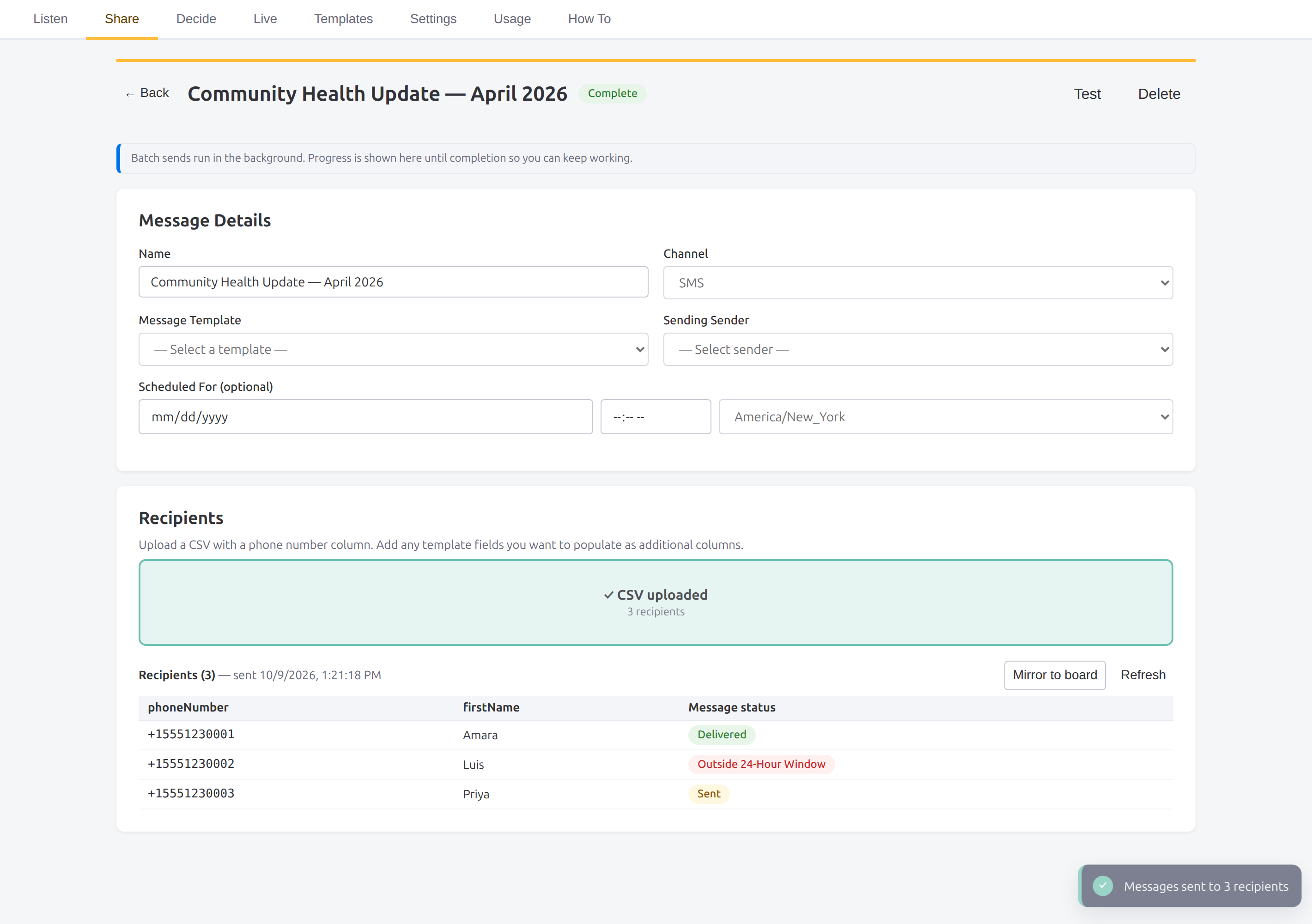
Mirror the campaign to a board
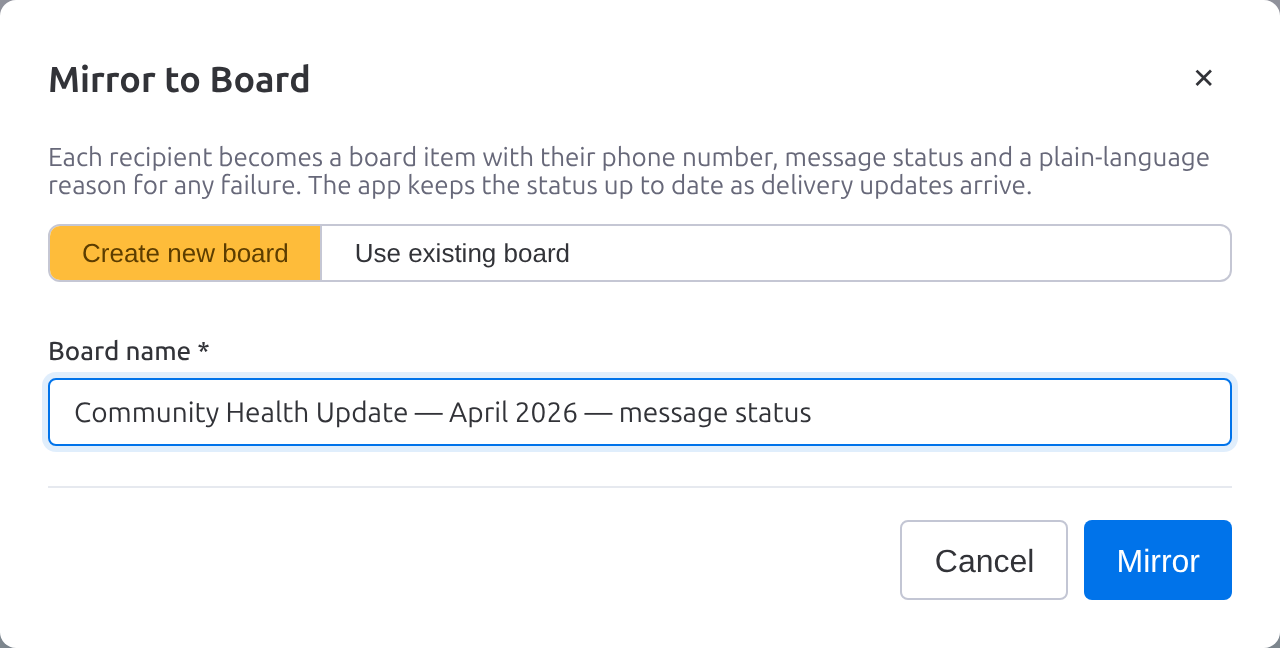
Click Mirror to board to copy every recipient and status to a monday.com board that stays up to date as delivery progresses.
Tips & Best Practices
Get the most out of Share & Listen with these recommendations.
- ◈ Start small: Pilot with a small recipient list (5-10 contacts) before scaling to hundreds or thousands.
- ◈ Use templates: Create reusable question and message templates in the Templates tab to save time across surveys.
- ◈ Monitor usage: Check the Usage tab regularly to track message quotas and avoid hitting plan limits during active campaigns.
- ◈ Segment recipients: Use CSV imports with demographic columns (city, age, gender) to personalize messages and analyze response patterns.
- ◈ Test before going live: Always send a test message and review the conversation flow before approving a survey for production.
- ◈ Use WhatsApp templates: For WhatsApp outbound messages, make sure your templates are approved by Meta before sending batches.
Support & Resources
Need help? Reach out through any of these channels.
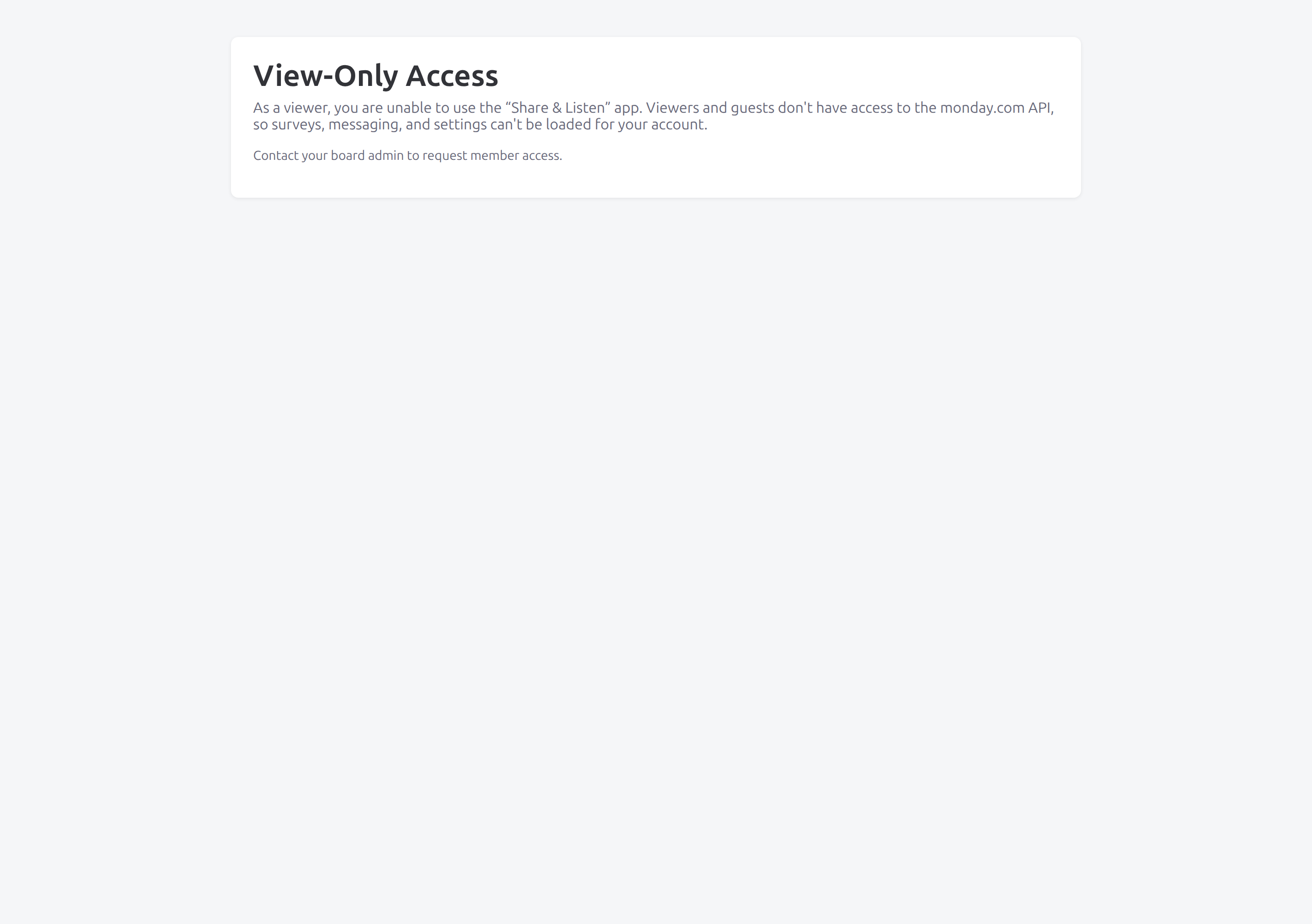
Viewers and guests can open the app but cannot send messages. They see a clear read-only gate rather than a broken screen:
Share & Listen · AI-powered conversational surveys for monday.com